Any Korean word, on any site
The card shows the dictionary form, the meaning in Korean and English, romanization, the sentence you found it in, and a button to hear it. The app’s 20,000 built-in words answer instantly, even offline.

Browser extension · Chrome and Edge
Point at a Korean word on any website, or in YouTube and Netflix subtitles, and see what it means without leaving the page. The words you look up go straight into your Korean by muratodesu deck.
Korean Lens isn’t in the Chrome Web Store yet. The install button will appear here as soon as it is.
Korean Lens runs in Chrome or Edge on a computer. Open this page there to install it.
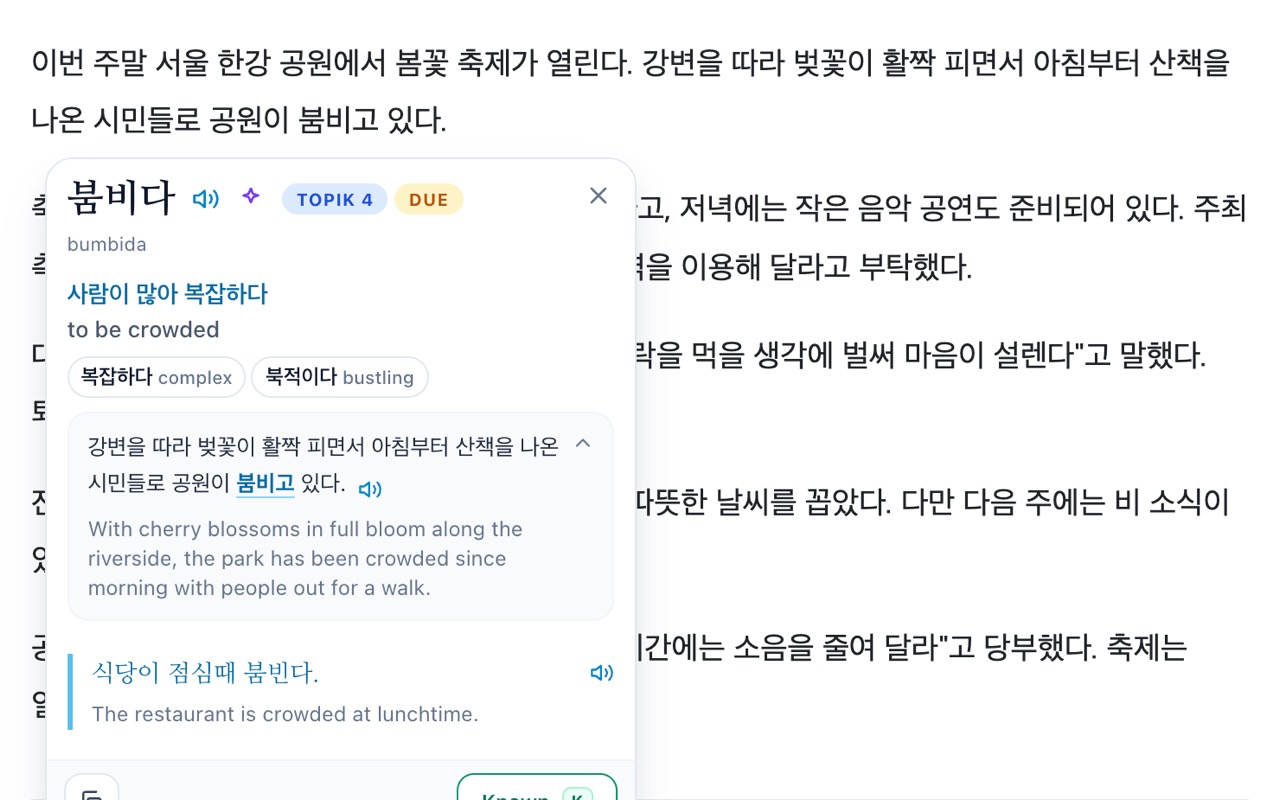
The card shows the dictionary form, the meaning in Korean and English, romanization, the sentence you found it in, and a button to hear it. The app’s 20,000 built-in words answer instantly, even offline.
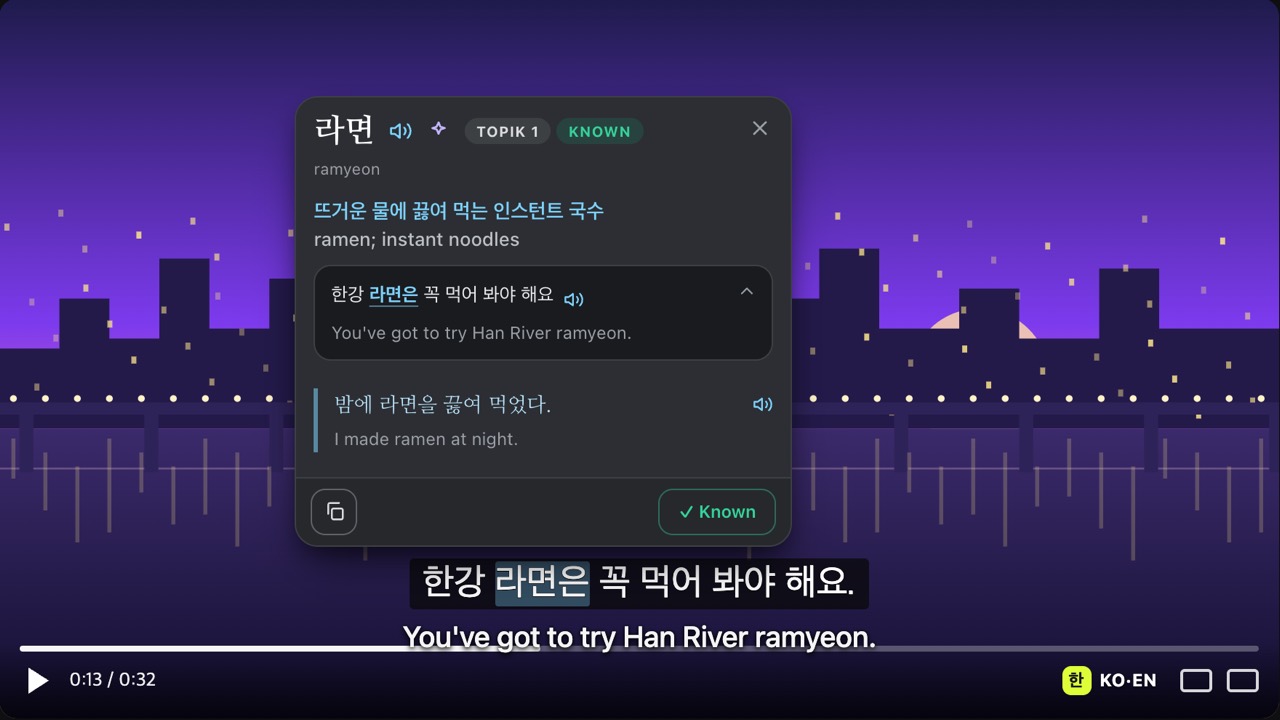
Tap a word in the subtitles to look it up while the video pauses. Show an English line under the Korean, or keep it blurred until you check. The lines just ahead are translated in advance, so the English is there when the line is.
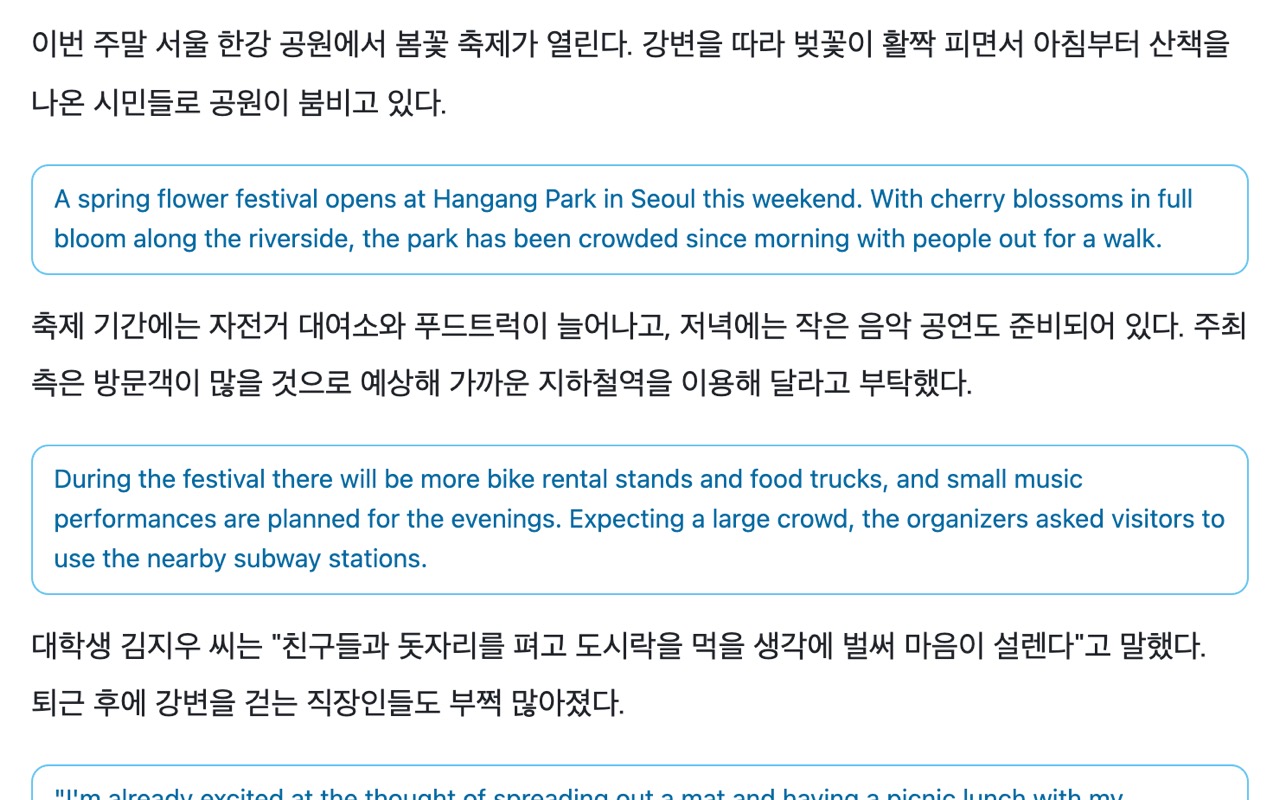
Read mode puts a translation under every paragraph of an article, blurred until you point at it, so you try the Korean first.
On videos, A S D go to the previous line, replay it, or skip ahead. Pause after each line, or follow the whole transcript in the browser’s side panel.
Scan an image or a webtoon page and its Korean text becomes words you can tap and look up.
Sign in to the app once and the extension uses that account: saved words, words you know, and reviews that are due show up on every page you read.
Chrome and Edge on a computer. It reads Korean on ordinary websites, and subtitles on YouTube and Netflix. Other video sites are partly supported. It doesn’t run on phones, and it stays out of the app’s own pages, which have their own lookups.
Words in the app’s built-in dictionary are free. Other words use the AI provider set up in your account, the same as the app’s Dictionary, or a basic free translation when none is set up.
The extension reads the page you are on only to find Korean words and the sentence around them. See the privacy policy for what is stored and where.